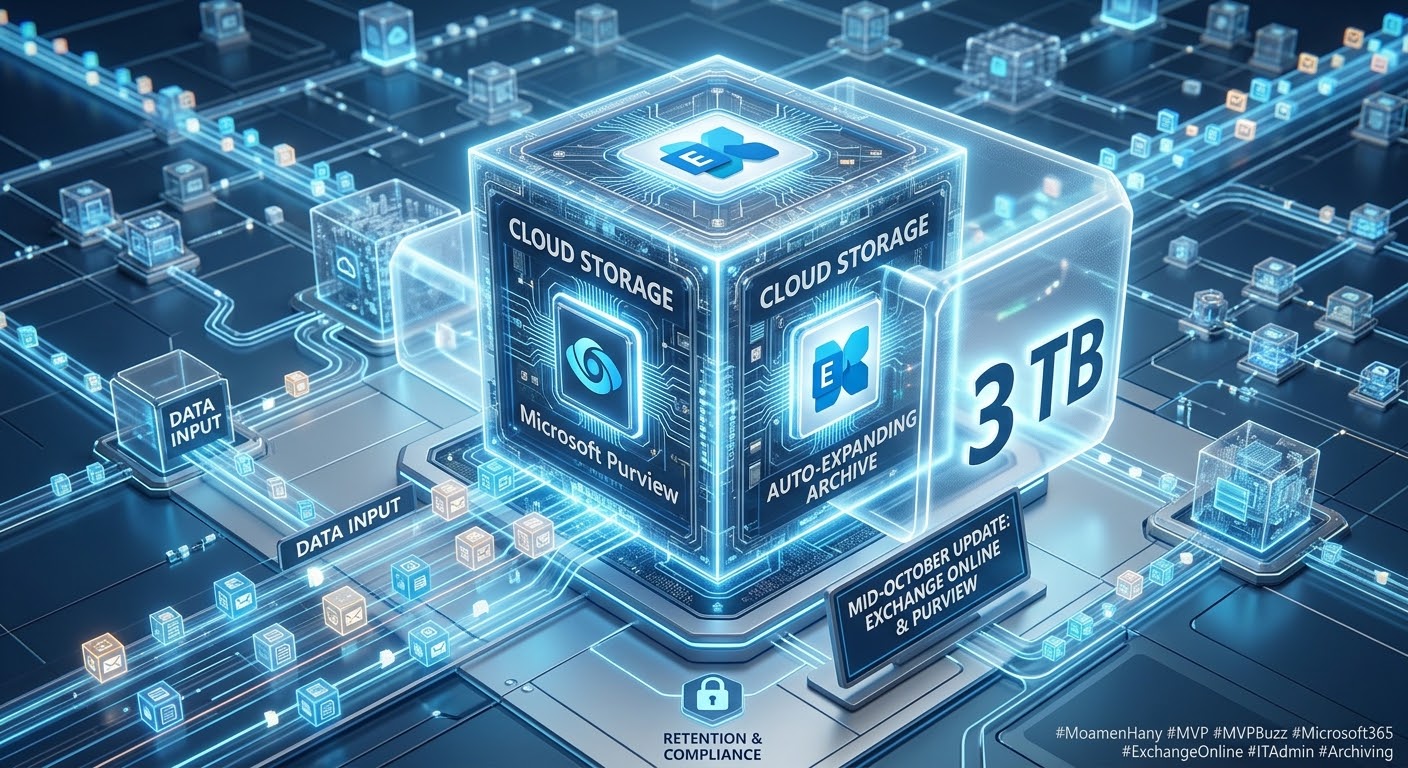
Exchange Online: Auto-Archiving Has Arrived — And It Changes Everything
Microsoft has quietly activated one of the most impactful mailbox-protection mechanisms in years.
No announcement.
No major rollout campaign.
Yet the effect is massive for IT departments, Exchange admins, and enterprise organizations.
This new capability is Auto-Archiving — a background, intelligent safety system that prevents mailboxes from reaching their storage limits and unexpectedly stopping email flow.
🔥 What Is Auto-Archiving?
In traditional Exchange Online environments, organizations relied on:
-
Retention policies
-
Manual archiving
-
User-triggered cleanup
-
Mailbox quotas
-
Warnings
-
And ultimately, service interruption when a mailbox hit its limit
But Microsoft has now introduced a system that quietly works behind the scenes:
📌 When a mailbox reaches around 96% of its quota, Exchange automatically moves the oldest items into the Archive Mailbox.
No admin action.
No retention policy needed.
No user interaction.
No downtime.
The Managed Folder Assistant just starts working — proactively — to keep the mailbox alive.
It’s the equivalent of an emergency relief valve inside the system.
🎯 Why Auto-Archiving Is a Major Shift
1️⃣ Eliminates “Mailbox Full” Outages
For executives, high-volume users, teams dealing with large attachments, and shared mailboxes — this reduces one of the most frequent support incidents in Exchange history.
2️⃣ Works Alongside Retention Policies
Auto-Archiving is not a compliance feature.
It complements existing MRM and retention configurations without changing them.
Retention defines how long data must be kept.
Auto-Archiving simply ensures the mailbox doesn’t reach capacity.
3️⃣ Perfect for Migration, T2T, Hybrid, and PST Import Projects
During migrations, mailbox sizes fluctuate rapidly.
Auto-Archiving stabilizes mailbox health without requiring admins to expand quotas manually.
4️⃣ Zero User Training — Zero Disruption
Users don’t need to understand the feature.
It just works, silently.
⚙️ How Auto-Archiving Works Behind the Scenes
Trigger Point
-
Default threshold: 96% mailbox usage
-
Admin-adjustable: 80% to 100%
What Moves?
-
Oldest emails from the primary mailbox
-
Eligible items based on system rules
-
Items not blocked by labels such as “Never Archive”
What Is Not Moved?
-
Calendar
-
Contacts
-
Tasks
-
Certain protected or flagged items
When Does It Stop?
When the mailbox falls below the configured threshold.
This is not a one-time event.
It’s a continuous safeguard.
📌 Licensing Requirements for Auto-Archiving
Auto-Archiving does not require a special standalone license.
It depends on one thing:
➡️ The user must have an Exchange Online license that includes an Archive Mailbox.
If the mailbox has an active archive, Auto-Archiving can run.
If the mailbox does NOT have an archive — Auto-Archiving will NOT work.
🔵 Plans That Include Archiving by Default
These licenses already include an Archive Mailbox (and therefore support Auto-Archiving):
-
Exchange Online Plan 2
-
Microsoft 365 E3 / E5
-
Office 365 E3 / E5
-
Microsoft 365 Business Premium
-
Office 365 A3 / A5 (Education)
-
Government equivalents (G3 / G5)
-
Exchange Online Archiving (EOA) when assigned as an add-on
These plans include:
-
Archive Mailbox
-
Extended storage
-
Auto-expanding archive (for most enterprise plans)
🟣 Plans That Require an Add-On
The following plans do NOT include archive mailbox capability, so Auto-Archiving will NOT work unless an add-on is purchased:
-
Exchange Online Plan 1
-
Microsoft 365 Business Standard
-
Microsoft 365 Business Basic
-
Office 365 E1
-
F1 / F3 frontline licenses
To enable archiving (and therefore Auto-Archiving), assign:
➡️ Exchange Online Archiving (EOA) Add-On
This unlocks:
-
Archive mailbox
-
Auto-expanding archive
-
Auto-Archiving functionality
🟢 Additional Licensing Notes
-
The archive mailbox must be manually enabled.
-
Auto-Archiving will NOT run if the archive mailbox is full.
-
Auto-expanding archive is highly recommended for large organizations.
-
Shared mailboxes require proper licensing depending on size and activity.
⚠️ When Auto-Archiving Will NOT Run
Even with correct licensing, Auto-Archiving will stop if:
-
Archive mailbox is disabled
-
Archive mailbox is full
-
Auto-expanding archive is not enabled (and storage is exceeded)
-
Threshold is set to 100%
-
Items are not eligible for archiving
-
The mailbox is on hold or blocked by compliance configuration
🔮 What This Means for Organizations
This quietly introduced feature represents a major shift:
✔ Fewer helpdesk tickets
✔ Happier high-volume users
✔ Smoother migrations & cutovers
✔ Less administrative overhead
✔ More stable Exchange Online environment
It’s a small feature with huge operational impact.
Moamen Hany